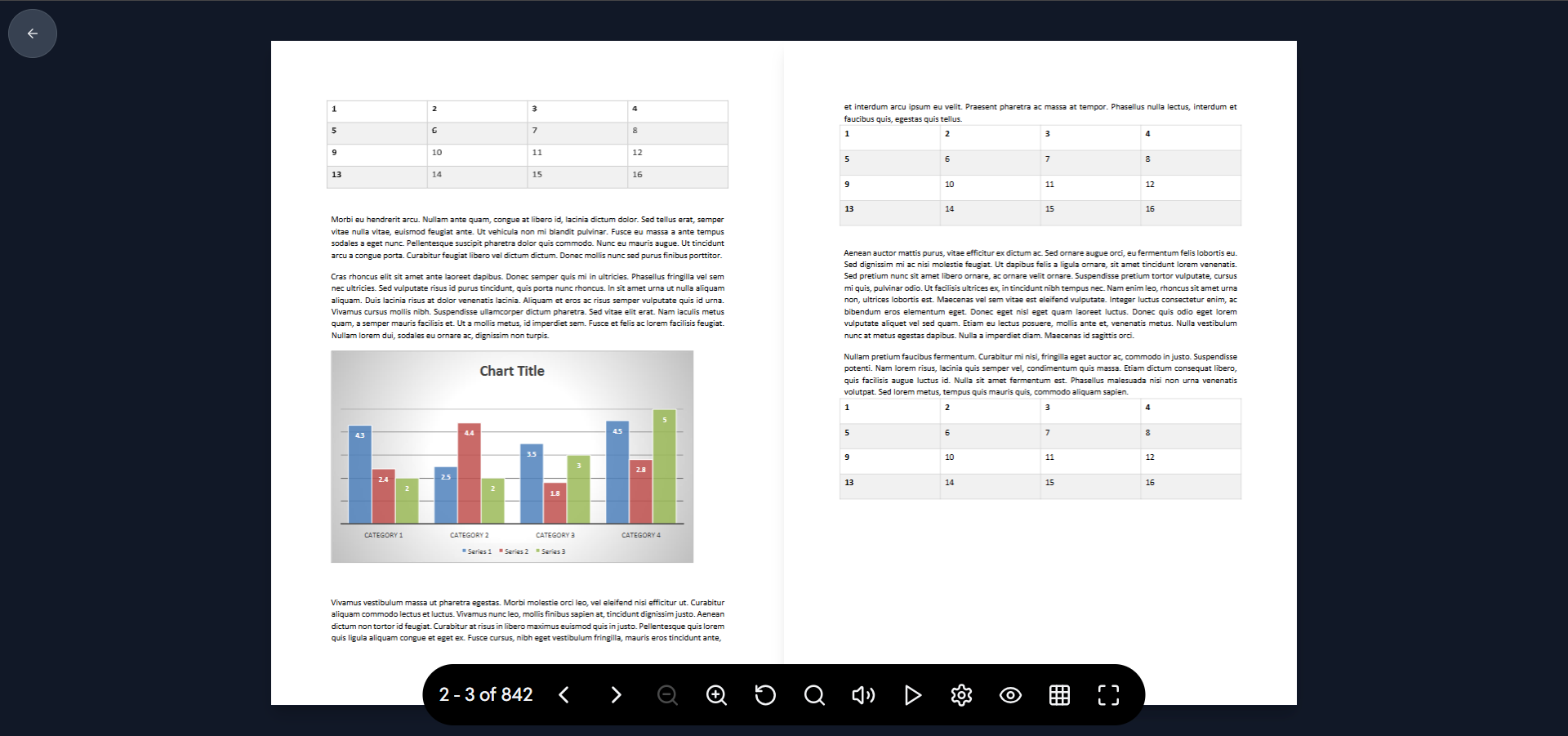
What is the Flipbook Viewer Control Bar?
📖 Flipbook Viewer Control Bar Guide
The bar at the bottom allows readers to navigate, adjust settings, and interact with the publication.
-
Page Count (
1 of 842): Displays the current page number and the total number of pages in the flipbook. -
Go Back ({<} Arrow): Navigates the reader to the previous page.
-
Go Forward ({>} Arrow): Navigates the reader to the next page.
-
Search (Magnifying Glass): Opens a search function, allowing the reader to search for specific keywords or phrases within the flipbook's text content.
-
Zoom Out (Magnifying Glass with Minus): Reduces the level of magnification on the page.
-
Zoom In (Magnifying Glass with Plus): Increases the level of magnification on the page for closer inspection of details.
-
Sound Toggle (Speaker Icon): Toggles the flip sound effects (page-turning sound) on or off.
-
Share (Three Connected Dots): Opens a menu or dialog box with options to share the flipbook link via email, social media, or embed code.
-
Settings (Gear Icon): Opens a small menu for the reader to customize their viewing experience (e.g., changing the background color, viewing mode, or download options).
-
View/Grid Toggle (Waffle/Grid Icon): This icon likely toggles between the standard single-page view and a grid view or thumbnail view (like a table of contents), making it easier to quickly jump to any page.
-
Fullscreen (Expand Icon): Expands the flipbook viewer to fill the entire screen of the monitor, maximizing the reading area.