How to Share the Embed Link from Crezlo Flipbook
Once you’ve created your Flipbook in Crezlo, you’ll likely want to share it with clients, customers, or your online audience. Crezlo makes this easy with multiple sharing and embedding options.
Sharing Your Flipbook via Link
- Open the flipbook in your Crezlo dashboard.
- Click on the “Share” button.
You’ll see different sharing options appear. - Copy the direct link.
- If the tour is Public → anyone can open the link.
- If the tour is Unlisted → only people with the link can access it.
- If the tour is Password-Protected → viewers will be prompted to enter the password.
- Send the link to your audience via email, messaging apps, or social media.
💡 Tip: Shorten the link with your preferred URL shortener if you want a cleaner look.
🧭 How to Share and Use the Embed Link from Crezlo Flipbook
🔹 Step 1: Open the Flipbook Preview Settings
-
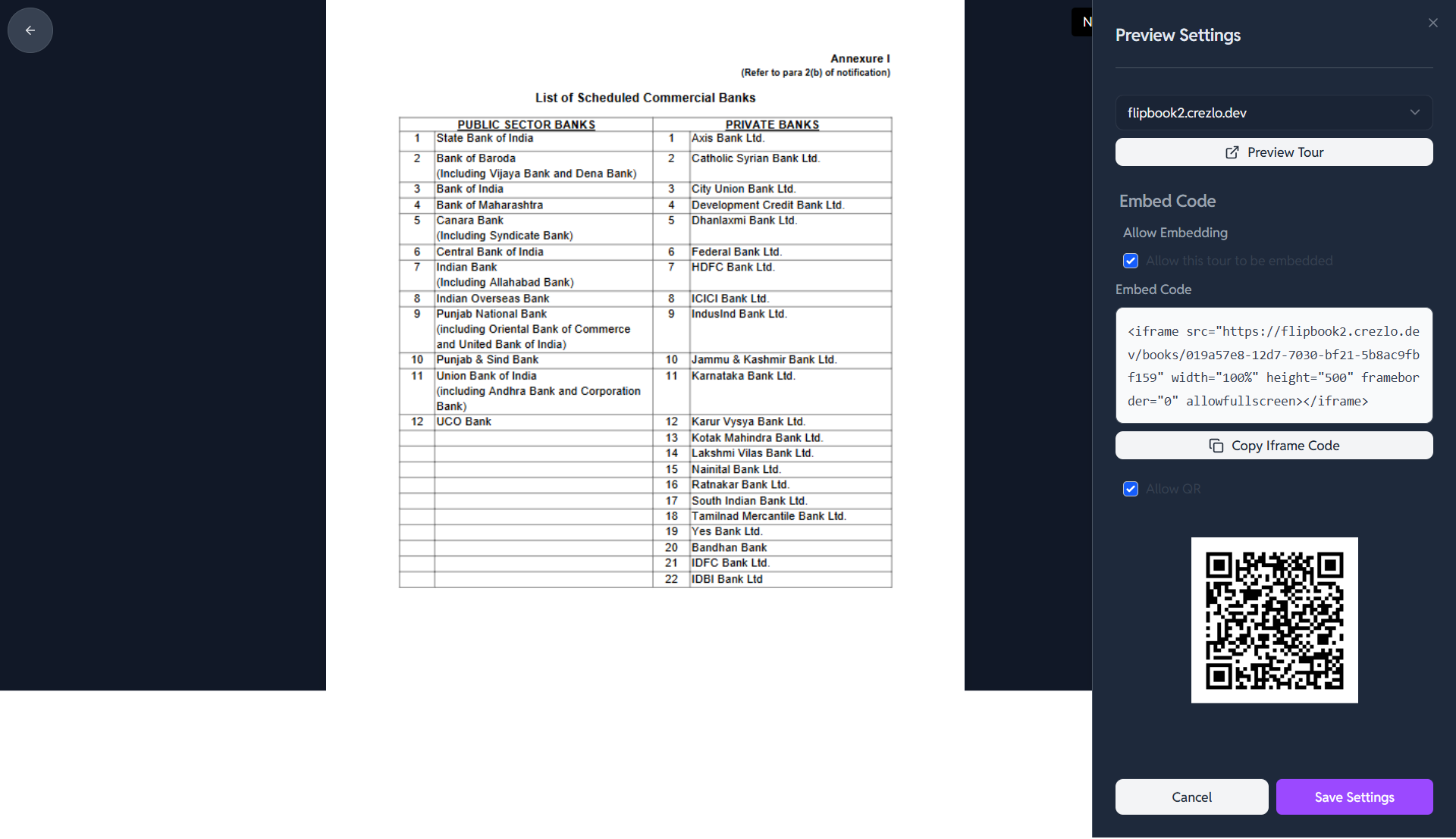
In your Crezlo Flipbook editor, click “Preview Settings” (the panel shown on the right in your screenshot).
-
You’ll see the Embed Code section.
🔹 Step 2: Enable Embedding
-
Make sure “Allow Embedding” is checked.
✅ This allows others to view your flipbook when embedded on a site. -
-
🔹 Step 3: Copy the Embed Code
-
Click the “Copy Iframe Code” button.
You’ll get a code like this:<iframe src="https://flipbook2.crezlo.dev/books/01pa57e8-12d7-7030-bf21-5b8ac9fbf159" width="100%" height="500" frameborder="0" allowfullscreen></iframe> -
-
🔹 Step 4: Share or Embed It
You have two ways to share:
🧩 Option 1: Embed on a Website or Blog
-
Paste the iframe code into your website’s HTML.
-
Example:
<div style="width:800px; margin:auto;"> <iframe src="https://flipbook2.crezlo.dev/books/01pa57e8-12d7-7030-bf21-5b8ac9fbf159" width="100%" height="600" frameborder="0" allowfullscreen></iframe> </div>
📱 Option 2: Share the Direct Link or QR Code
-
The link (from inside the iframe
srcvalue) can be shared directly:
👉 https://flipbook2.crezlo.dev/books/01pa57e8-12d7-7030-bf21-5b8ac9fbf159 -
You can also download or share the QR code shown below the embed code.
Scanning it will open the flipbook on any device. -
-
🔹 Step 5: Test the Embed
-
Open your web page or send the link to a colleague to confirm it loads correctly.
-
Ensure embedding is allowed publicly (some workspaces restrict private access).