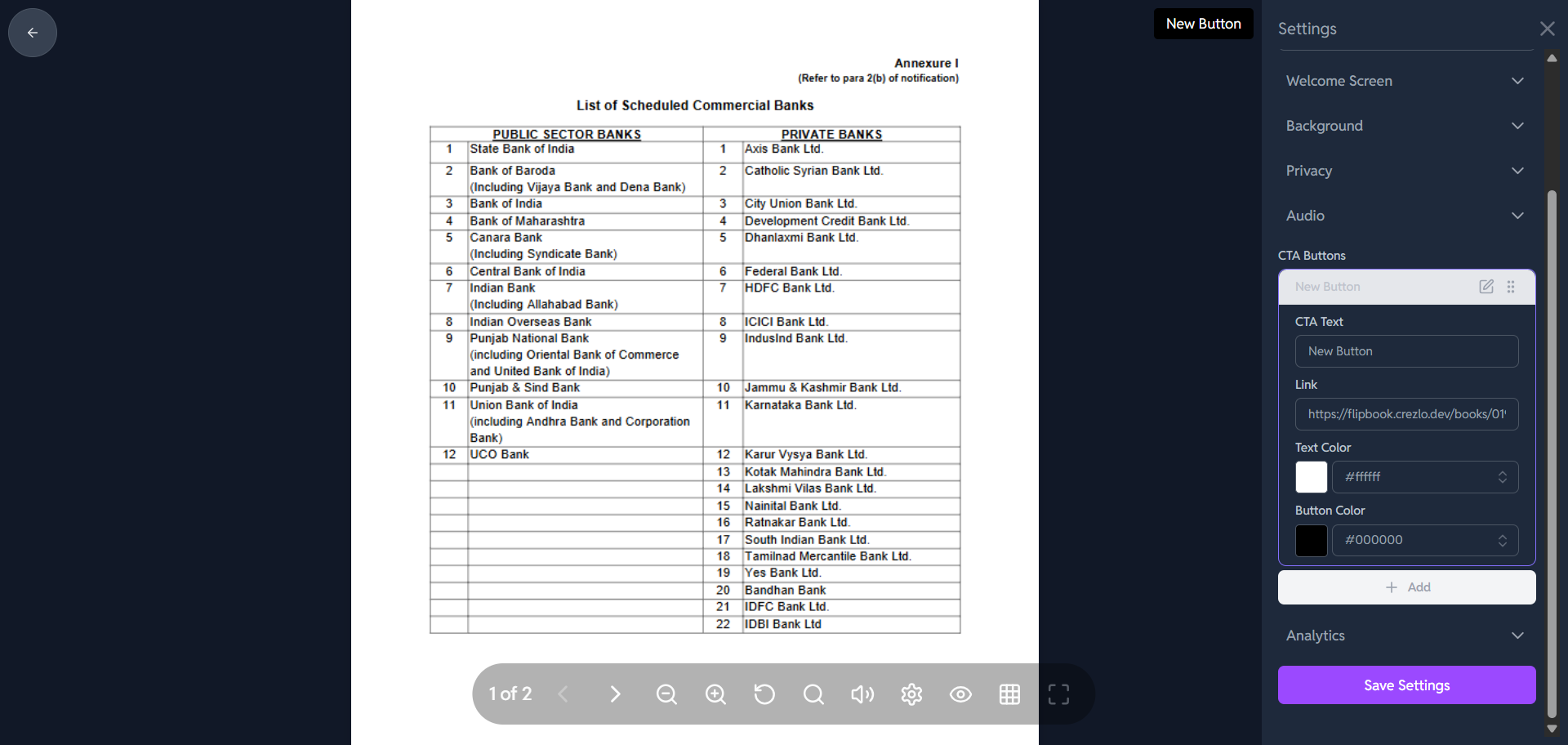
How to Manage the CTA Button in Crezlo?
👆 Manage the CTA Button in Crezlo
1. Start the Button Creation
-
In the "CTA Buttons" section, click the "+ Add" button.
-
This will open the customization panel for a new button,
2. Configure the Button Details
You need to fill out the following fields to define what the button looks like and where it leads:
-
CTA Text:
-
Field:
New Button(the current placeholder) -
Input: Change this to compelling action text (e.g., "Download PDF," "Contact Sales," or "Visit Our Website"). This is what the user will see.
-
-
Link:
-
Field: Below
CTA Text -
Input: Enter the full URL (web address) where you want the user to go when they click the button (e.g.,
https://www.yourcompany.com/pricing).
-
-
Text Color:
-
Field: Currently set to
#ffffff(White) -
Input: Click the color swatch to change the color of the text on the button. White is often a good choice for dark buttons.
-
-
Button Color:
-
Field: Currently set to
#000000(Black) -
Input: Click the color swatch to change the background color of the button itself. Choose a high-contrast color (like bright blue or orange) to make it stand out against your flipbook background.
-
3. Add More Buttons or Save
-
Add Another Button: If you need more than one CTA (e.g., one for "Contact" and one for "Download"), click the "+ Add" button again to create another button with its own settings.
-
Save: After you have configured the details and colors for all your desired CTA buttons, scroll to the bottom of the right-hand panel.
-
Click the "Save Settings" button.
The CTA button(s) will now appear in your flipbook interface, ready to direct your viewers to the desired action!