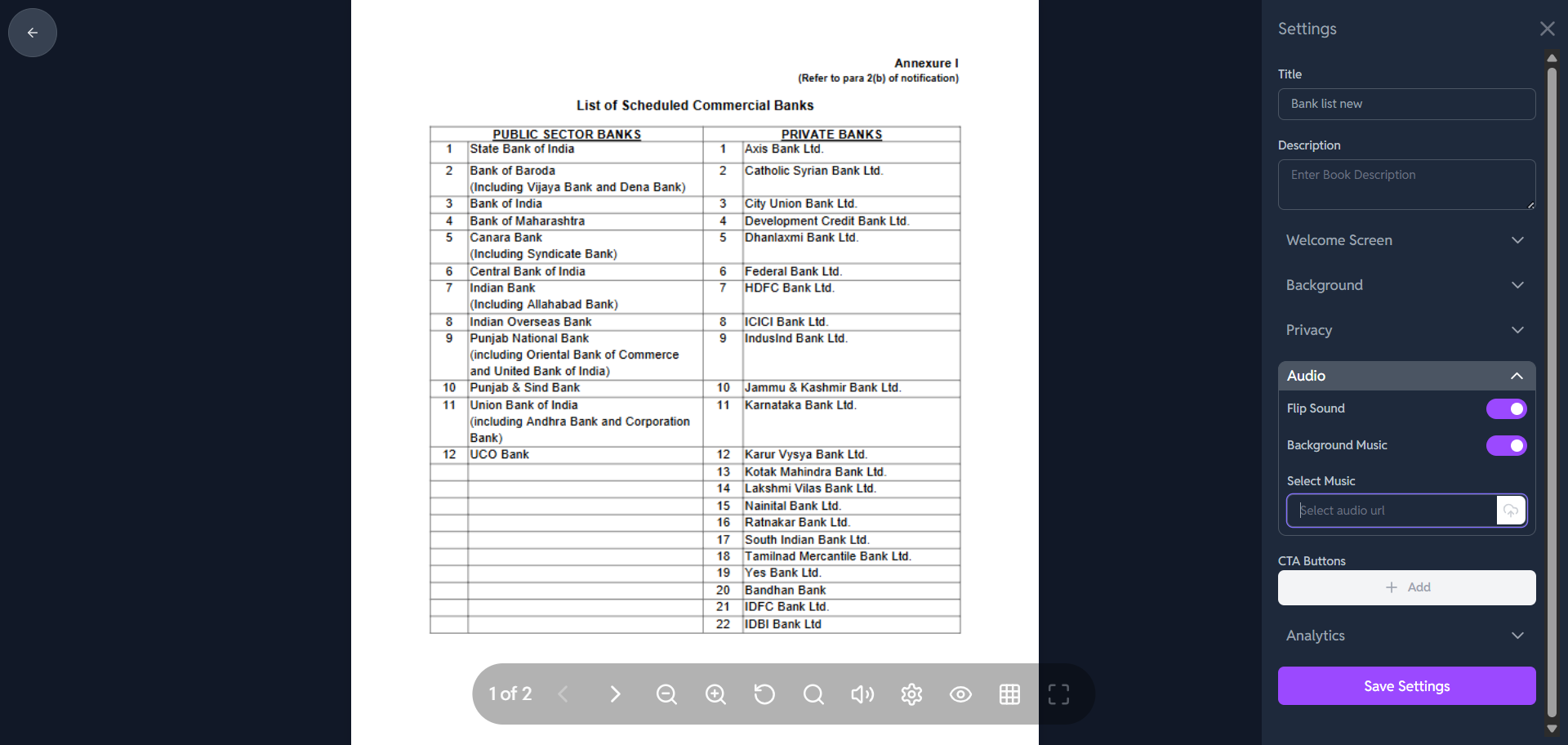
How to Customizing the Audio Section?
🎶Customize the Audio Section in Crezlo
-
Enable Audio for the Book:
-
At the top of the section, you will see a toggle switch next to "Enable audio for the book".
-
Click this switch to turn it ON . This is necessary to activate all other audio options.
-
-
Add Background Music:
-
Below the toggle is the "Background Music" field. This is where you set the track that plays when the flipbook is viewed.
-
Click "Select Music" to upload an audio file (like an MP3) from your computer, or you might have the option to choose from a library if Crezlo provides one.
-
-
Configure Flip Sound:
-
Next to "Flip Sound" (which is currently unchecked in your image), there should be a checkbox.
-
Check this box if you want the classic page-turning sound effect to play every time a viewer flips a page in your digital book. If you want a silent, professional experience, leave it unchecked.
-
-
Save Your Changes:
-
Once you have enabled audio, selected your background music, and configured the flip sound, scroll down to the bottom of the right-hand panel.
-
Click the "Save Settings" button to apply the audio changes to your flipbook.
-