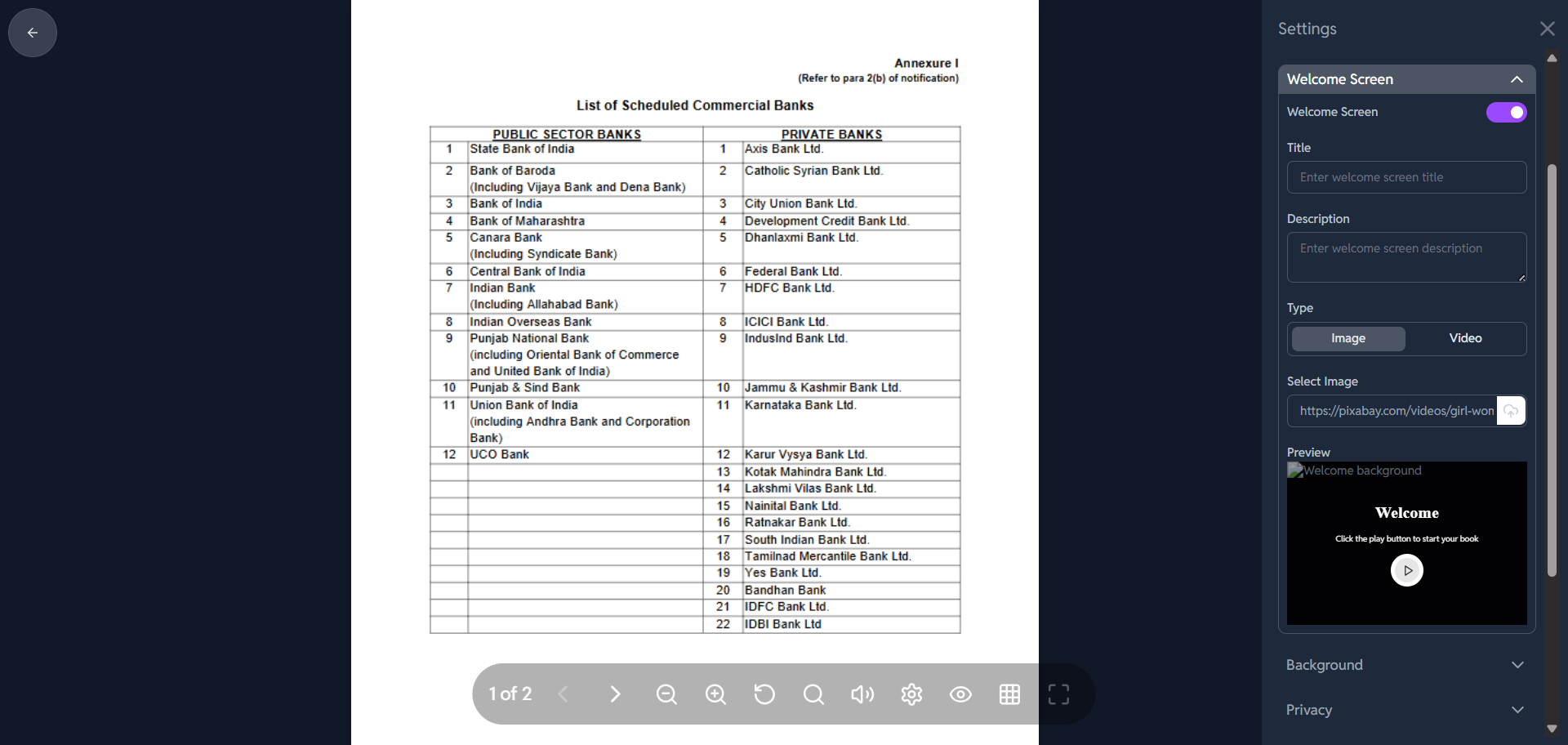
How to customize the Welcome Screen?
✨ How to Customize the Welcome Screen in Crezlo
-
Enable the Welcome Screen:
-
At the top of the "Welcome Screen" section, you'll see a toggle switch next to the label "Welcome Screen".
-
Click the switch to turn it ON.
-
-
Enter Title and Description:
-
Title: In the field below "Title", enter a short, engaging headline for your flipbook (e.g.,"Welcome to Our Flipbook").
-
Description: In the field below "Description", enter a brief summary or message (e.g., "Interactive version with video content").
-
-
Choose Media Type (Image or Video):
-
Under the "Type" header, select what kind of media you want on your welcome screen:
-
Image: Select this to display a static image, such as your logo or a custom cover graphic.
-
Video: Select this to embed a video that plays on the welcome screen (e.g., a brief introductory clip).
-
-
-
Select/Upload the Media:
-
If you choose "Image": Click the "Select welcome screen image" button to upload or choose the image file you want to use.
-
If you choose "Video": Click the "Select welcome screen video" button to upload or choose the video file you want to use.
-
-
Save Your Changes:
- Scroll down the panel and click the purple "Save Settings" button to apply all your Welcome Screen customizations.
After saving, the Welcome Screen should appear whenever someone opens your flipbook