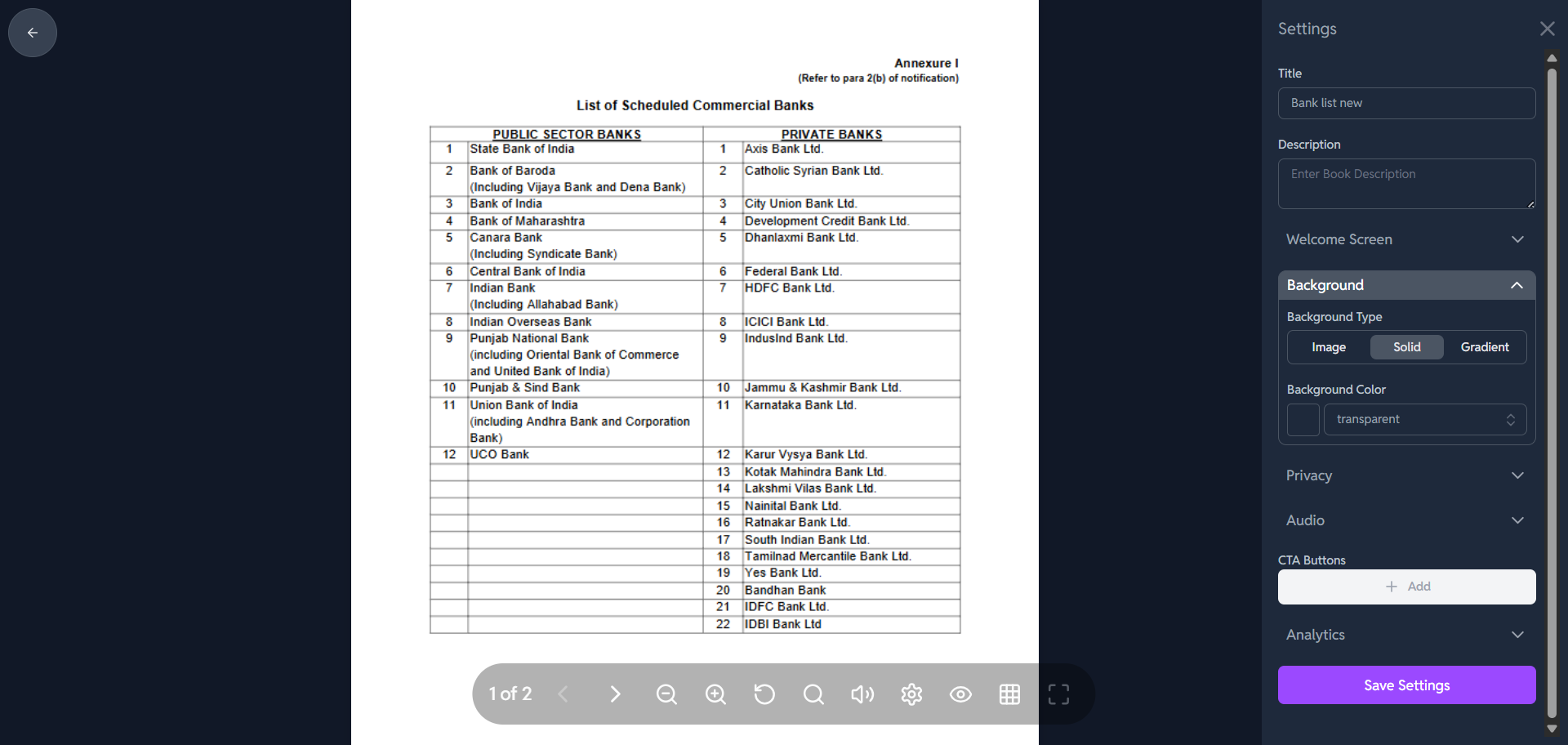
How to Customize the Flipbook Background in Crezlo?
The right-hand panel shows all the customization options, and the Background section is already expanded and ready for editing.
🎨 Customize the Flipbook Background
-
Locate the "Background" Section:
-
On the right-hand customization panel, scroll until you see the "Background" header.
-
This section controls the area outside the actual book pages.
-
-
Choose the Background Type:
-
Under "Background Type," you have three options
-
Image: Select this to upload or choose an image file (like a photo or a pattern) to use as the background.
-
Solid: Select this for a single, uniform color.
-
Gradient: Select this to use a blend of two or more colors that transition into each other.
-
-
-
Set the Color or Image:
-
If you choose "Solid" or "Gradient":
-
You will see the "Background Color" option. Click the color swatch (which currently says
transparent) to open a color picker. -
Choose your desired color or set up your gradient.
-
-
If you choose "Image":
- You will be prompted to upload the image you want to use for the background.
-
-
Save Your Changes:
-
After you have made your selection and the background looks the way you want it to, scroll down to the bottom of the right-hand panel.
-
Click the purple "Save Settings" button to apply the new background to your flipbook.
-