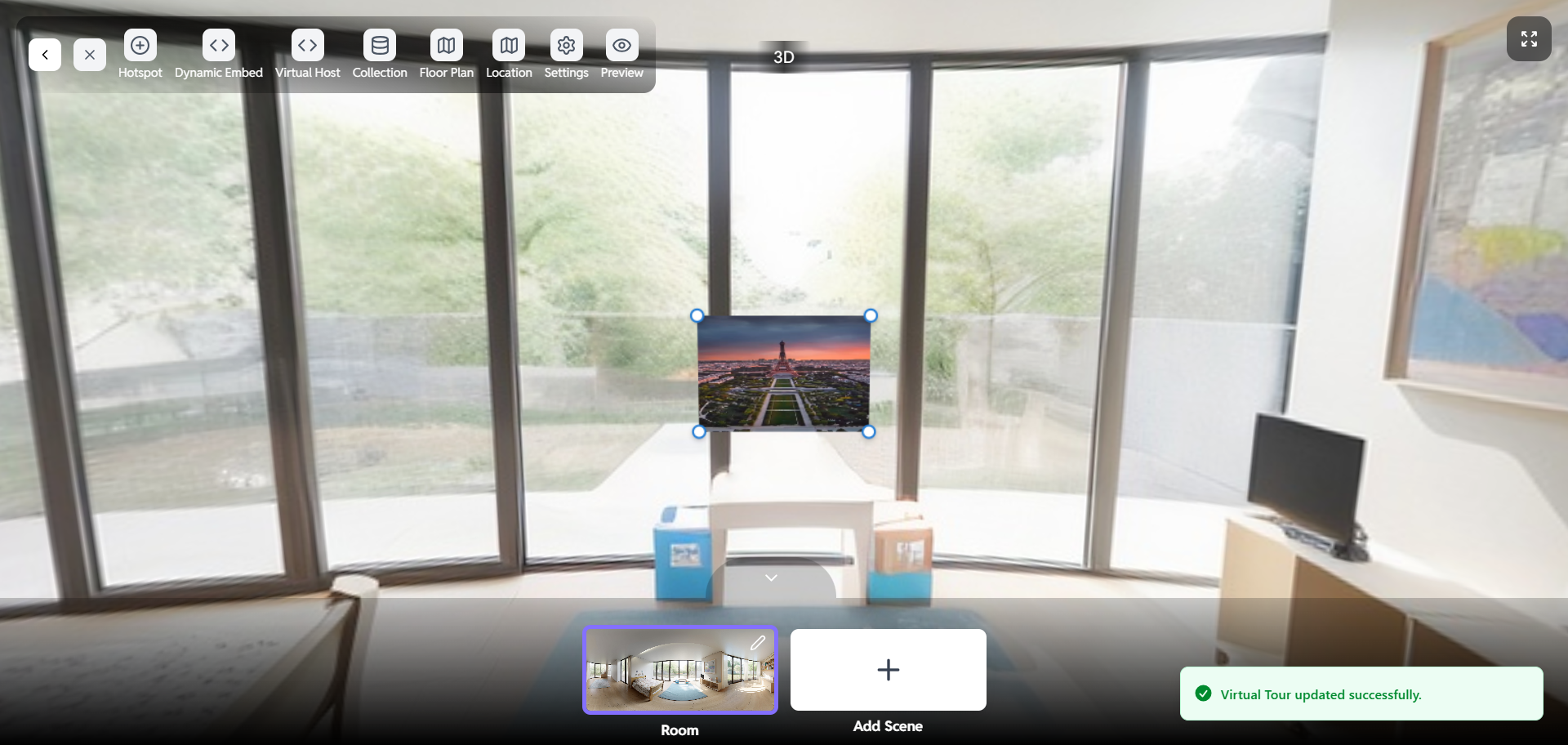
All about Virtual Host
How to Create Virtual Hosts in the Crezlo Platform
This document provides a step-by-step guide on how to create virtual hosts within the Crezlo platform. Virtual hosts allow you to host multiple websites on a single server, each with its own domain name and configuration. This guide will cover the necessary steps, from accessing the Crezlo control panel to configuring the virtual host settings.
What is a Virtual Host?
✔ A virtual host adds interactive video content to your virtual tour.
✔ Enhances user engagement with guided tours, instructions, or introductions.
✔ Easy to upload, customize, and position in your scene.
Accessing Virtual Host
- Open your virtual tour project on the Crezlo platform.
- Click on Virtual Host from the top menu bar.
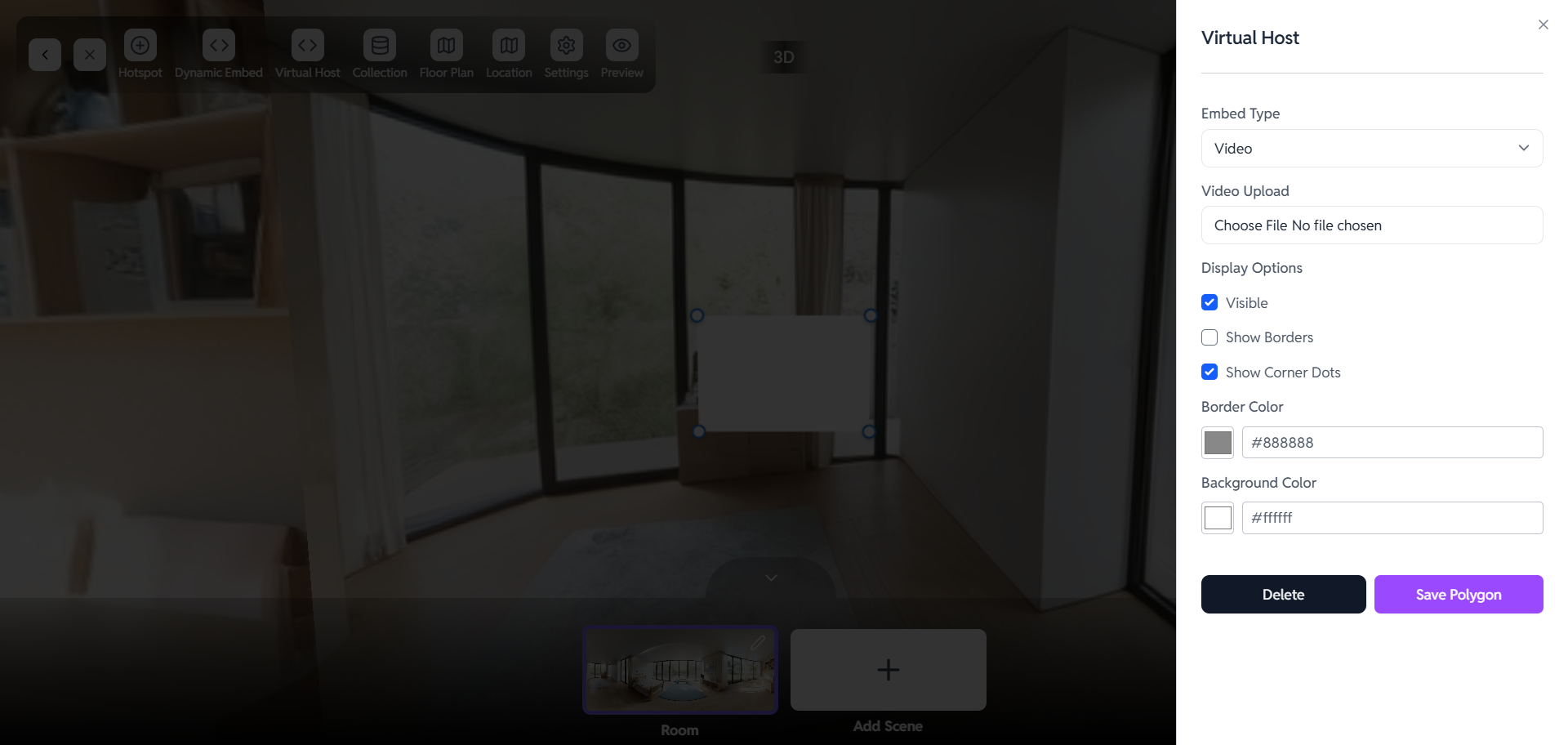
- The Virtual Host panel will appear on the right side of the screen.
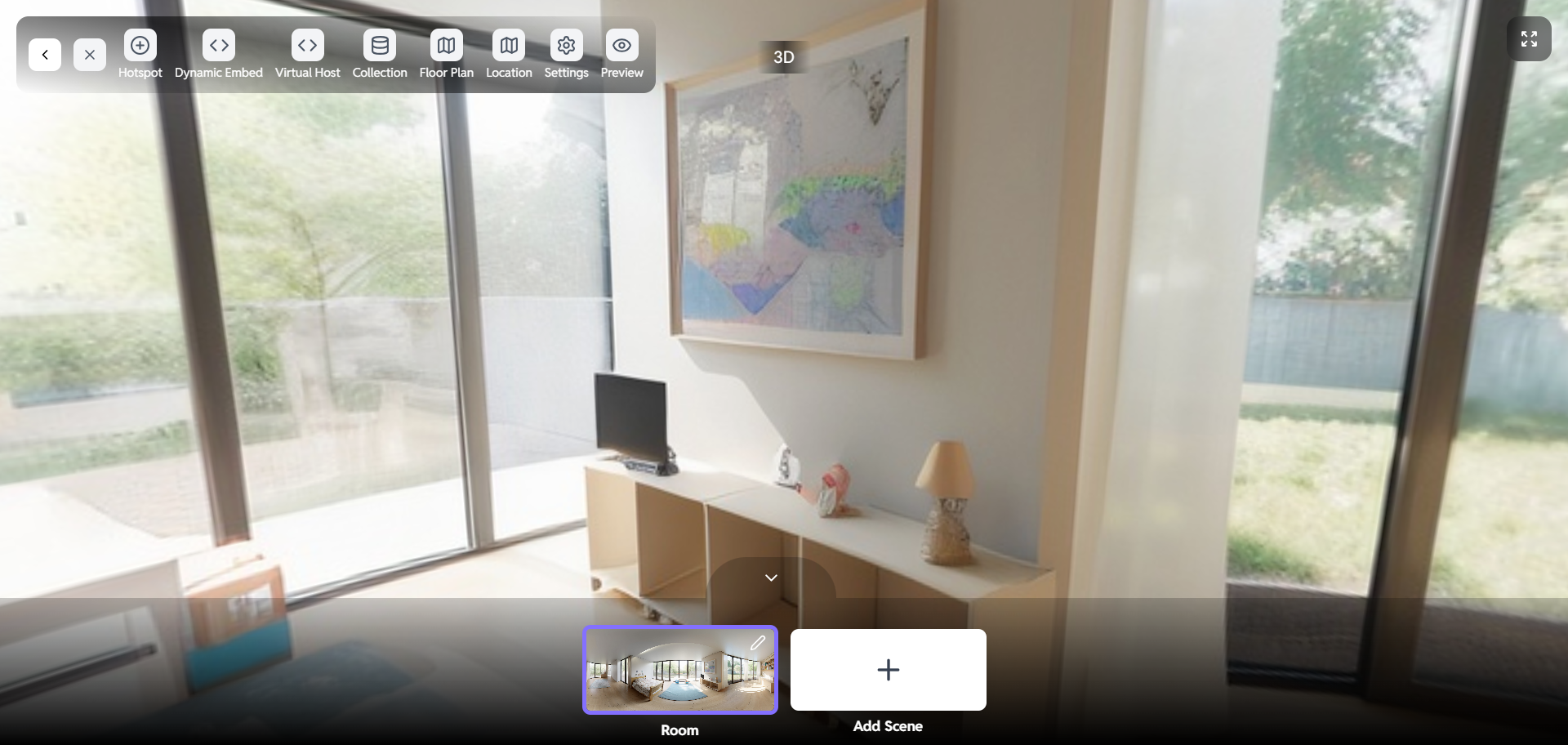
Embed Type Selection
- Click on the Embed Type dropdown menu.
- Select Video as the option.
- This allows you to add video content to your scene.
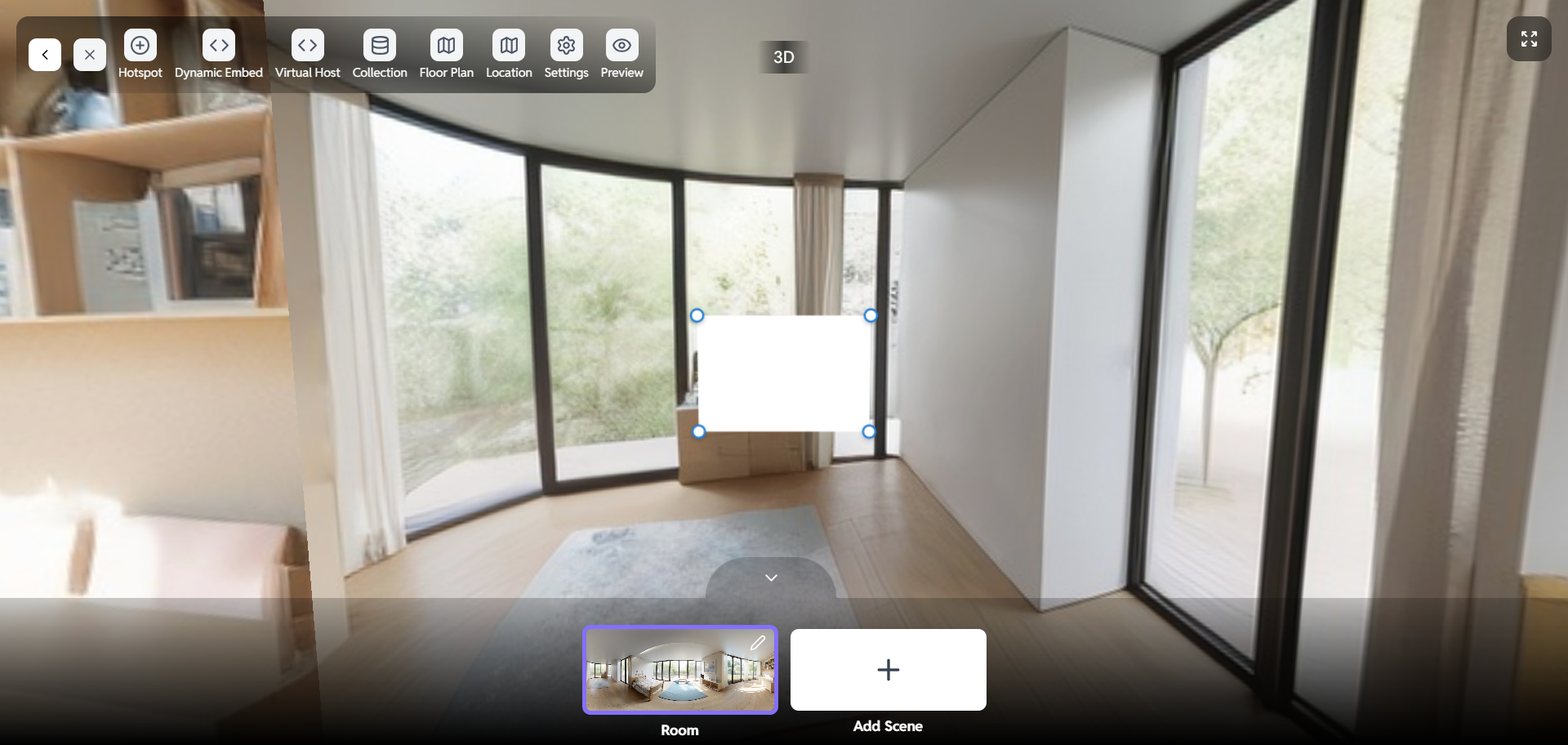
Uploading Video
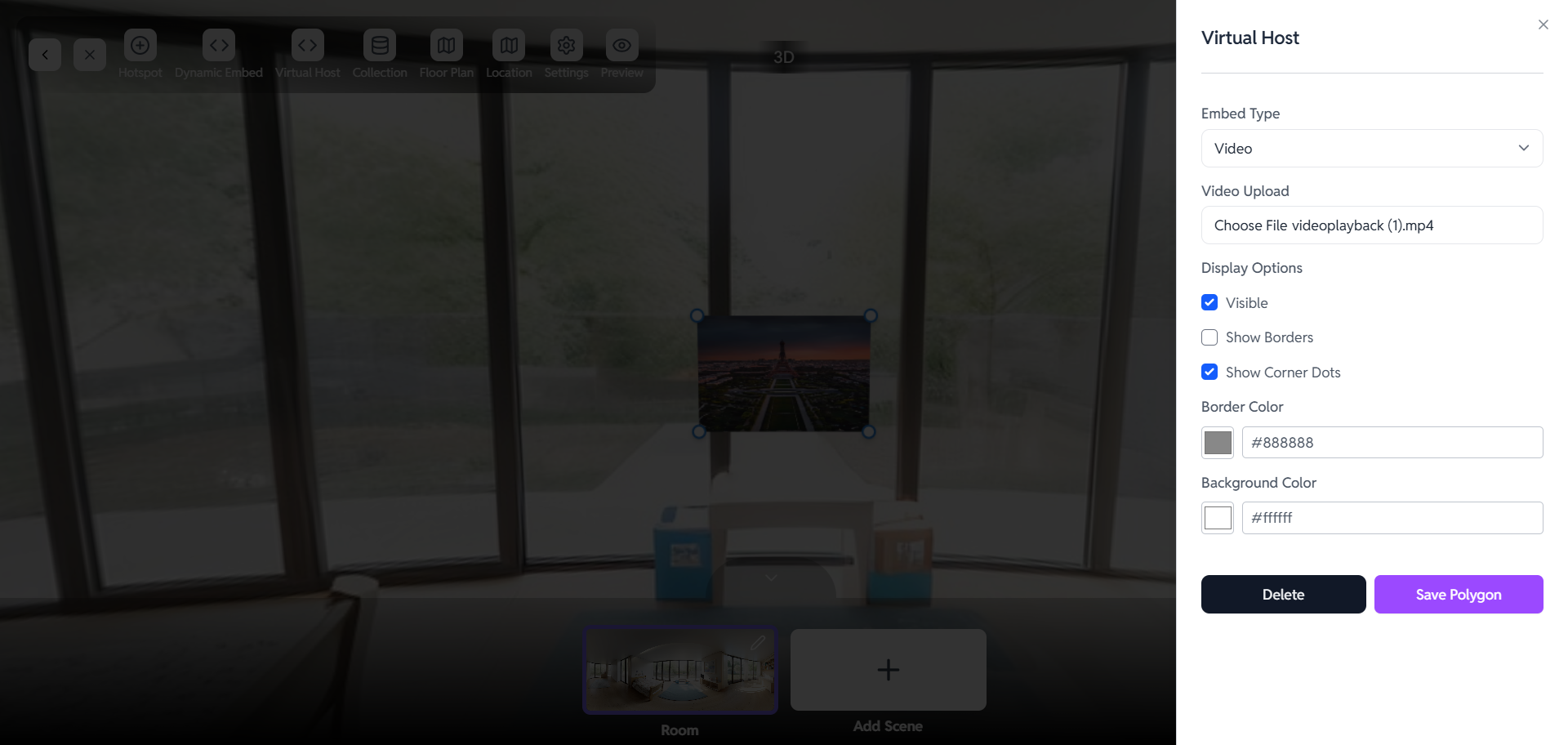
- Click on Choose File under Video Upload.
- Select the video file you want to embed from your device.
- Make sure the file format is supported for smooth playback.
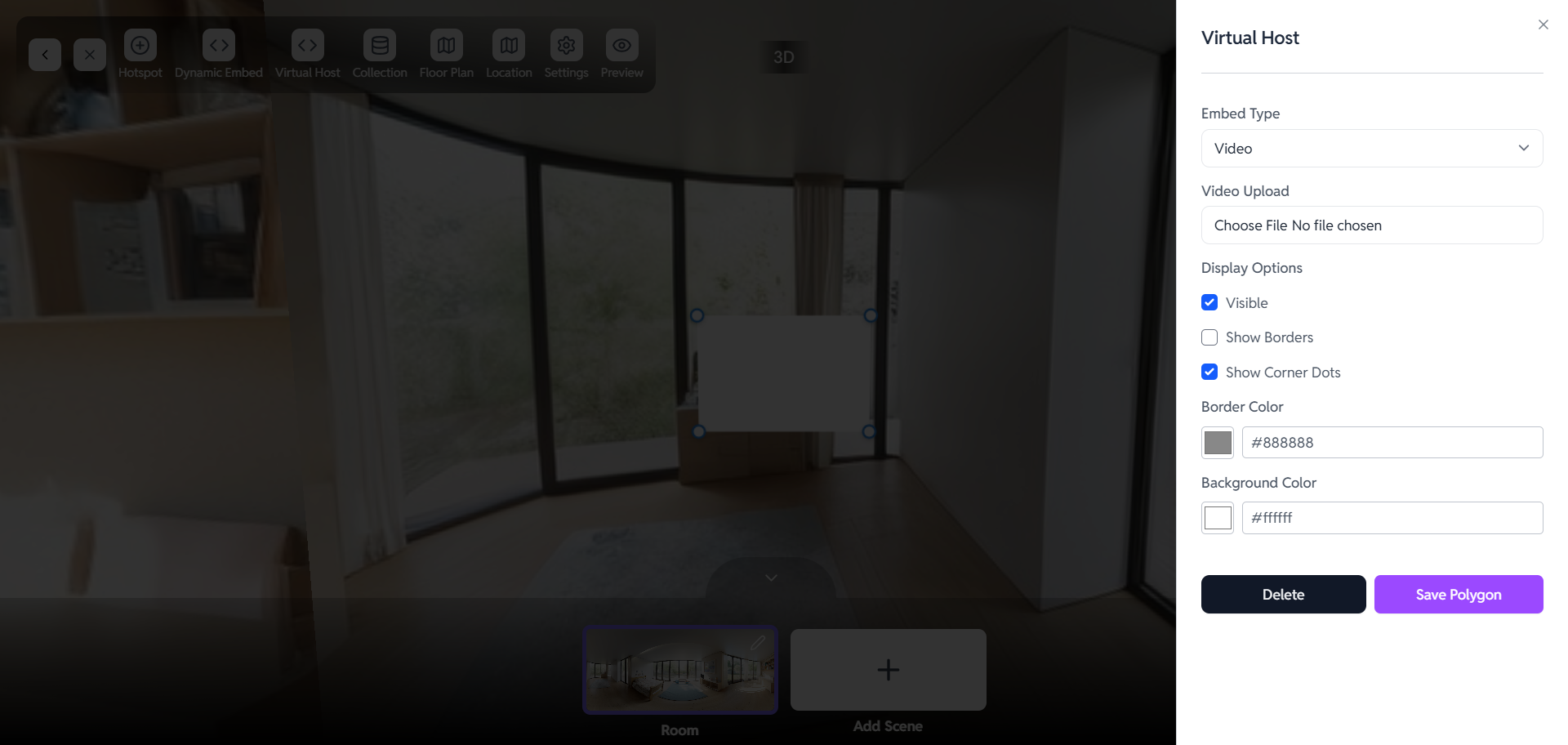
Display Options
- ✔ Visible – Ensures the video is displayed in the scene.
- ☐ Show Borders – Optionally add a border around the video.
- ✔ Show Corner Dots – Enables resizing and moving the video.
- Border Color – Choose your preferred color using the hex code or color picker.
- Background Color – Adjust the background shade for better contrast.
Positioning and Resizing
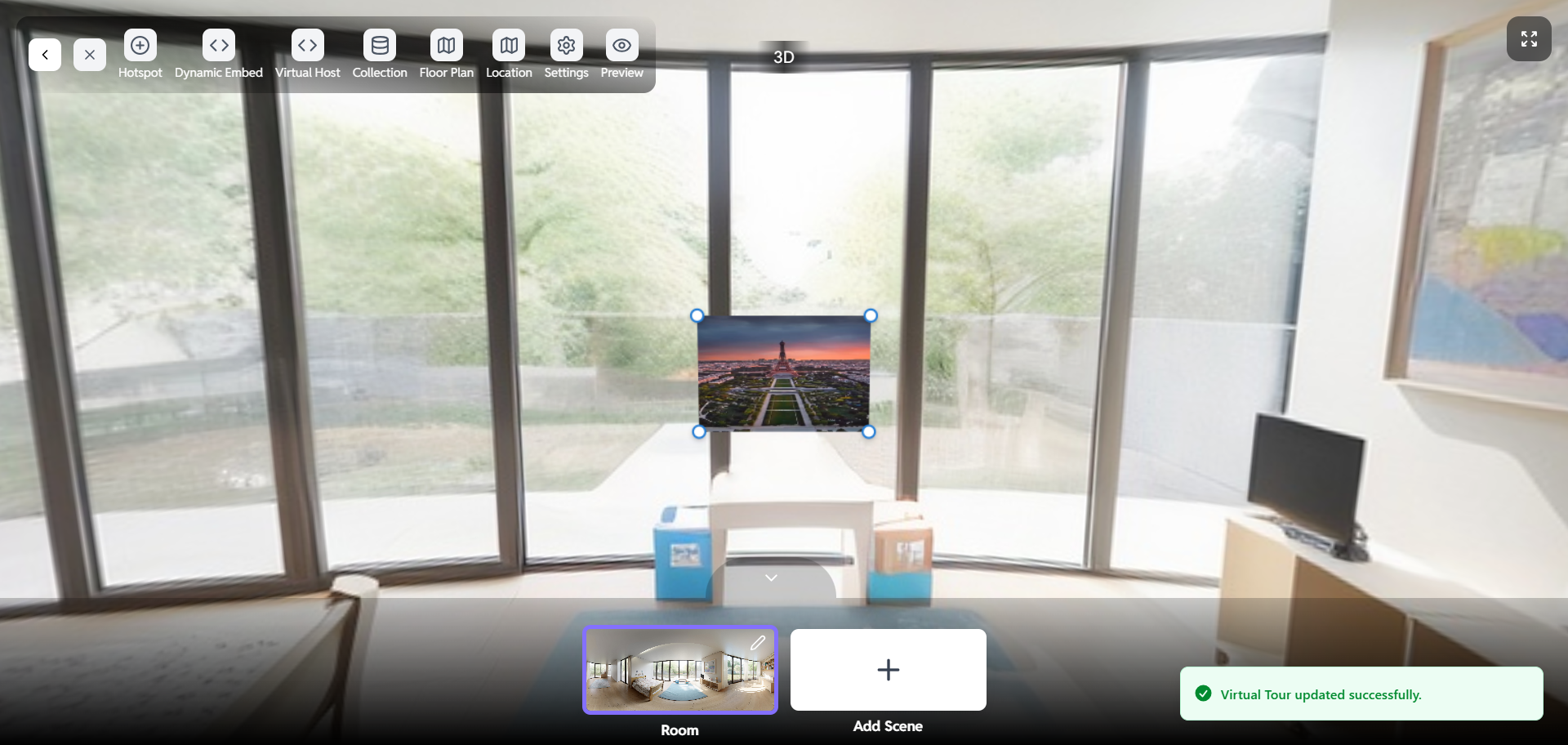
- Use the corner dots to adjust the size of the video frame.
- Drag the frame to position it in the desired part of the scene.
- Preview and adjust to ensure it doesn’t block important elements
Saving the Virtual Host
- After positioning and configuring, click on Save Polygon.
- The video will now be embedded and ready for users to view.
If you want to remove it, simply click Delete.
Previewing the Scene
✔ Click on Preview to see how the video looks within the virtual tour.
✔ Adjust the size and position if necessary.
✔ Ensure smooth playback and readability